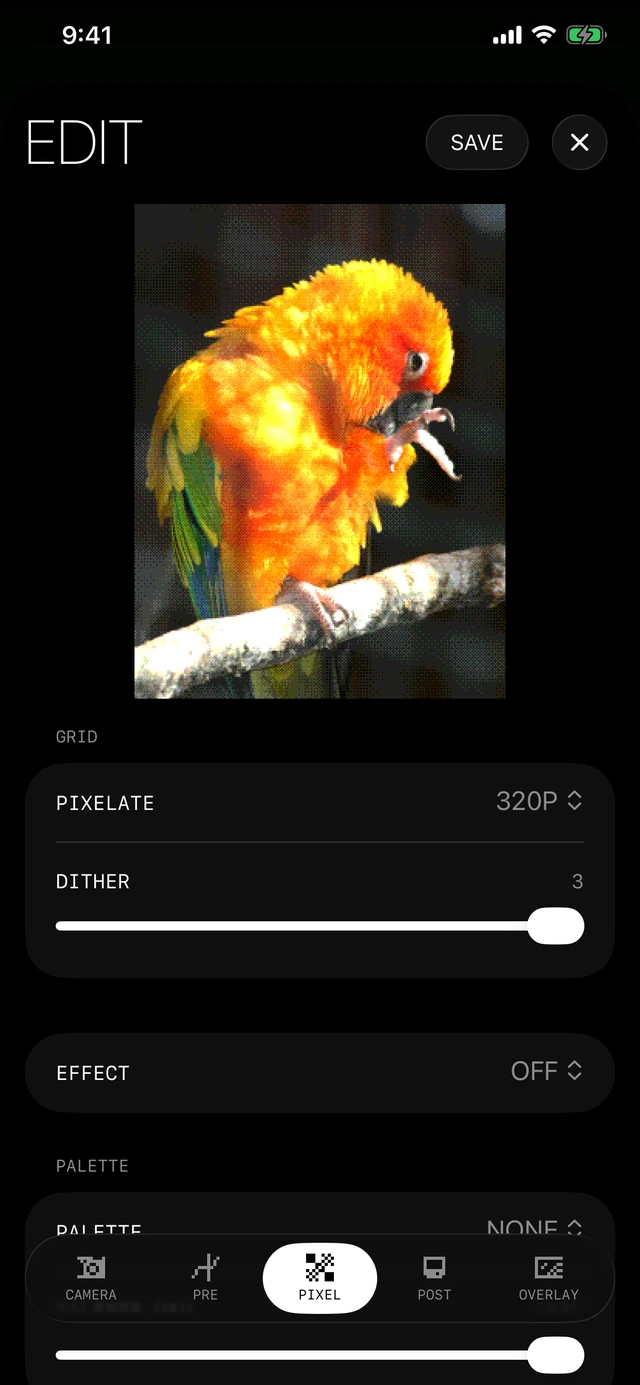
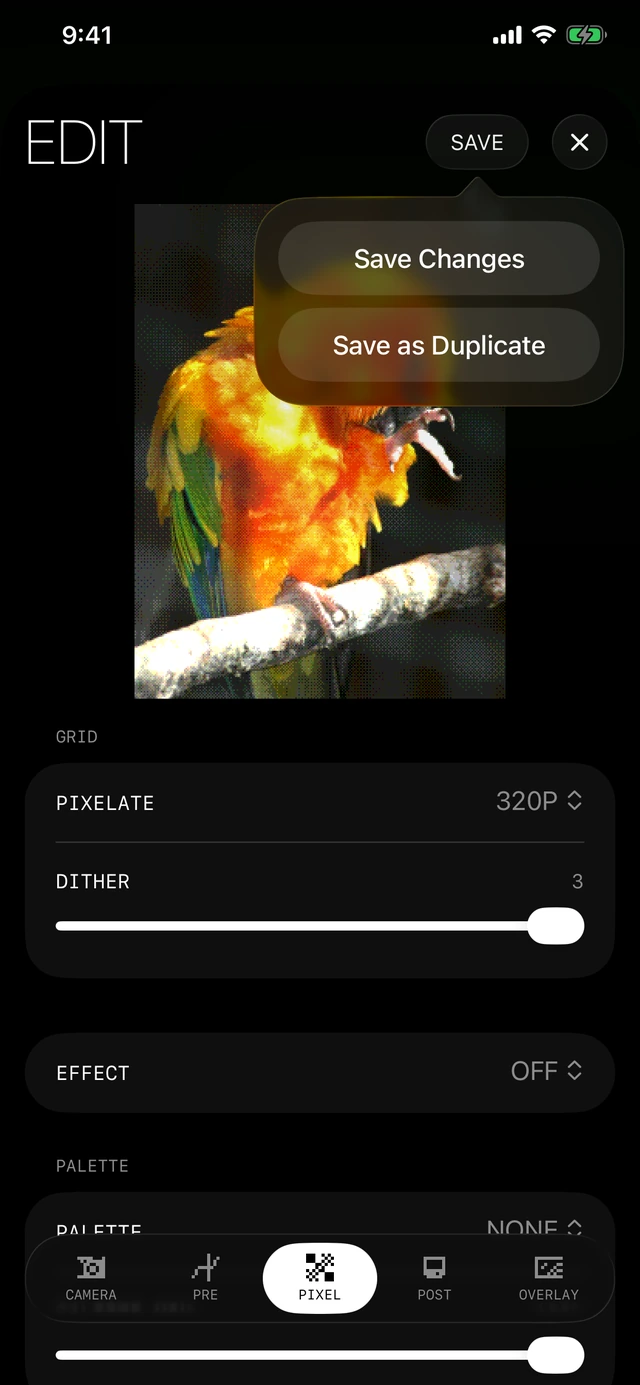
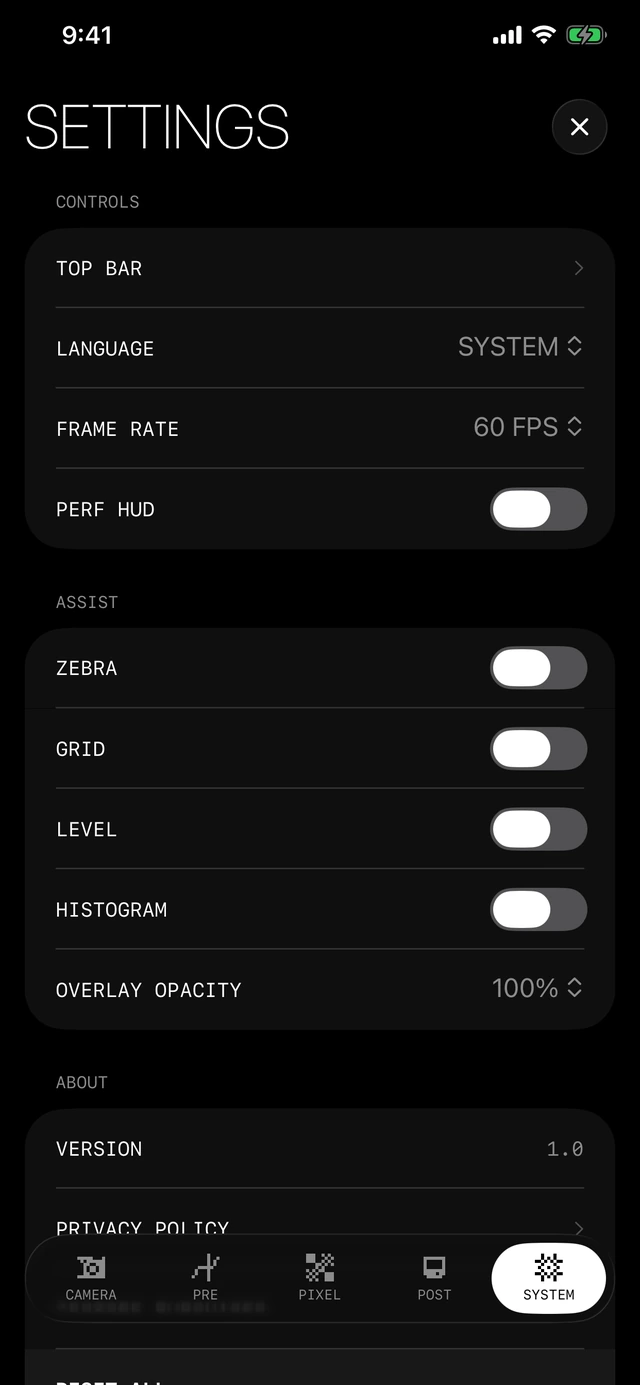
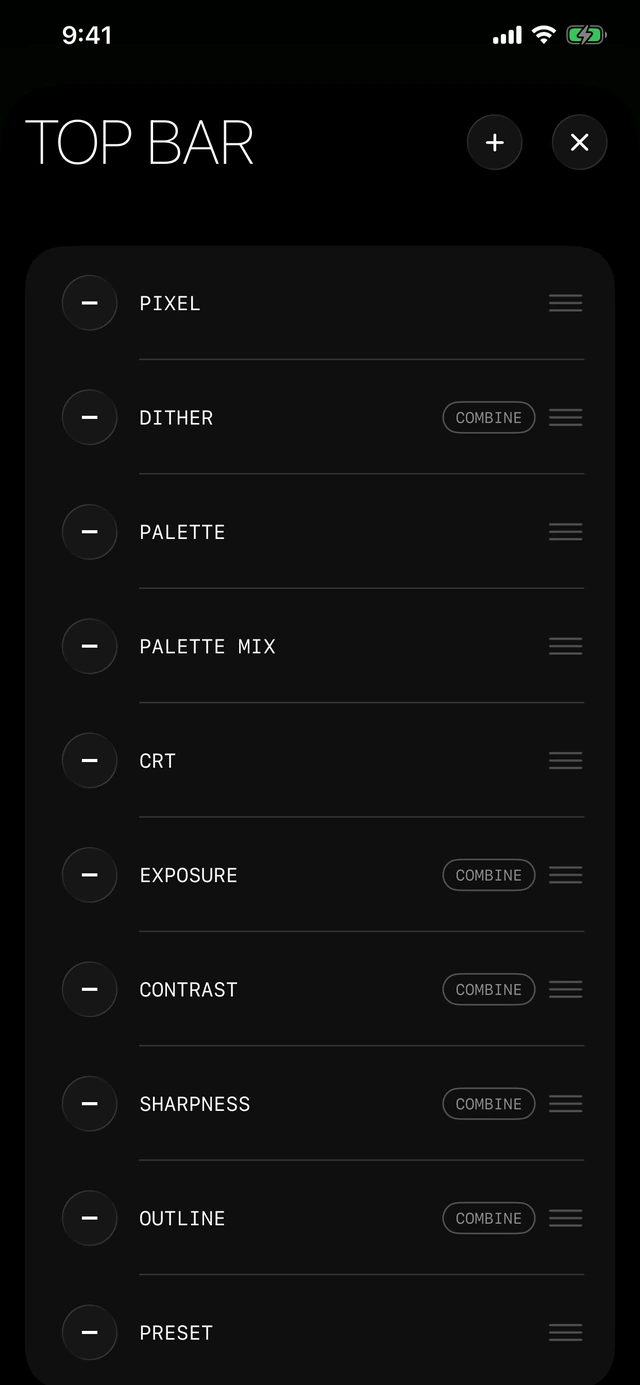
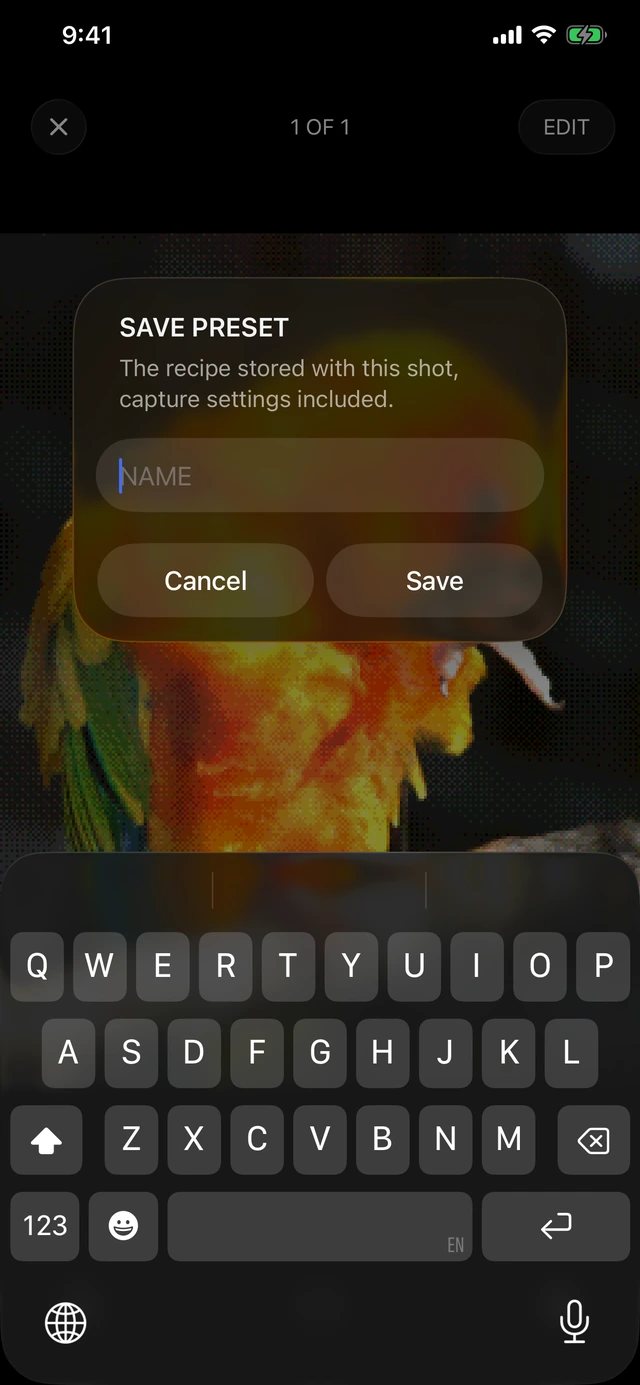
Download screenshots · PNGOpen a photo in Album, then tap Edit to change its look after shooting.Use the tabs to adjust color, pixels, effects and overlays. The preview shows each change before you save.Tap Save. Choose Save Changes to replace this version, or Save as Duplicate to keep the original and add an edited copy.Open Settings → System → Top Bar to choose which controls stay within reach while shooting.Reorder controls with the handles. Remove ones you rarely use, or combine compatible controls into a two-axis pad.Tap + to add another setting or tool. Add Overlay Edit here when you want direct access to positioning an overlay.Tap the overlapping-squares button to open Overlay, then import a PNG from Photos or Files. Transparent images work well for logos, stickers and frames.Select the overlay, then choose which adjustments affect it. Exposure changes the overlay itself; the switches let it share the photo’s color and effects.Activate Overlay Edit in the top bar. Move, resize and rotate the overlay on the photo, then tap Done.Open Presets to preview your saved looks on the current scene. CURRENT returns to the settings you had before trying a preset.When you like a combination, tap Save in the preset drawer and give it a name. It becomes a new preset you can use again.An asterisk marks unsaved edits. Switching presets keeps each draft for this session. Hold an edited preset and choose Reset Changes to restore its saved version.Open Palette, scroll to New and tap + to create a gradient palette. You choose how shadows, midtones and highlights are colored.Move the color stops along the ramp and adjust their hue, saturation and value. The live preview updates as you edit, and changes save automatically.Tap Share in the gradient editor. Save the QR image or copy the code to send your exact colors to someone else.To use a shared palette, scan its QR with the camera, or open Import in the gradient editor and paste the code.To share a look, share an Album photo as the original PNG file. It contains the photo’s settings; sending it as a file helps keep that metadata intact.Import the PNG into Album, open it and choose Save Preset to reuse its settings. Share custom palettes, LUT files and overlay images separately.